Apple is finally offering printing services from your iOS device, they are marketing this capability as AirPrint and it is in fact an amalgam of a number of existing network technologies. There are some HP printers already configured for AirPrint, but the list is rather short. Wouldn’t it be nice if you could use your existing printers to do this?
Thanks to Ryan Finnie for his research and TJ Fontaine for a fabulous script that automates the services configuration for your AirPrint printers.
Before proceeding, this tutorial assumes you are running CUPS on a Linux (Ubuntu) server to share out one or more printers on your network. In my configuration, an HP PSC 500 provides printing and scanning services and a Brother 2820 is our general purpose laser printer with fax. After settings things up for AirPrint using CUPS and Avahi, I am now able to print successfully to both devices from my iPhone 3GS.
- Configure CUPS. Get your CUPS server properly configured. This is going to require the following entries included in your cupsd.conf:
Listen 631
Browsing on
BrowseOrder allow,deny
BrowseAllow all
BrowseLocalProtocols CUPS dnssd
BrowseAddress @LOCAL
ServerAlias *
It will need to be have the option to share printers connected to the system (Browsing On), as a general rule of thumb if you can print to your CUPS server from another computer on your network then it’s probably configured correctly. - Install Avahi. You need this to broadcast your printer services, if you’re running Ubuntu server this can be done as follows:
sudo apt-get install avahi-daemon - Download TJ’s Script. It will make your next step much easier:
https://github.com/tjfontaine/airprint-generate - Run the airprint-generate script. This produces services files for Avahi. Copy the resulting files to:
/etc/avahi/services - Restart Services. Restart your avahi service:
/etc/init.d/avahi-daemon restart
Now browse to your printers on your favorite iOS device running 4.2.1 or later, when selecting Print from any of the standard applications (Mail, Safari, etc.) your printers should appear available.
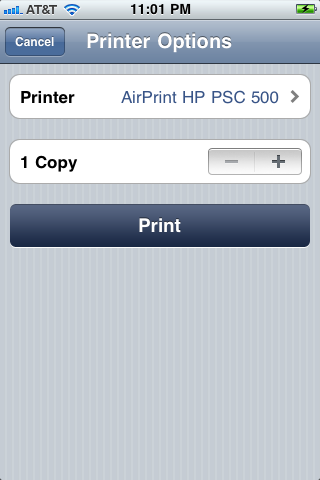
If you made it this far and are on iOS 6, then your journey is not yet complete. Visit AirPrint on Linux with iOS 6 for a rundown on how to get your server setup to support the changes Apple made in this release.


10 Comments
steve · November 23, 2010 at 11:24 am
Thanks for the pointers. It’s working beautifully on Fedora 14.
hanij · January 16, 2011 at 11:35 pm
i have CentOS 5. To get the script in step 3 to work with python 2.4 (which is what ships with CentOS 5) you need to modify line 43 to be:
from cElementTree import Element, ElementTree, tostring
assuming you also have “python-elementtree” and “libxml2-python” installed
Harry · October 18, 2012 at 12:14 pm
Hi, does this still work with iOS6? One of my Devices, i updated to iOS6, does not work? Do you have a solution?
Tweets that mention micromux » AirPrint for Mac on Linux -- Topsy.com · November 23, 2010 at 9:33 am
[…] This post was mentioned on Twitter by Ilia Lobsanov and Gordon Turner, Pradeesh. Pradeesh said: http://www.micromux.com/2010/11/22/airprint-for-mac-on-linux/ configure your printer for airprint (linux/ubuntu) […]
Airprint using Linux Server | IPhone · November 23, 2010 at 10:56 pm
[…] http://www.micromux.com/2010/11/22/a…inux/#more-401 […]
AirPrint freischalten ohne Download: Auch unter Linux und Windows prinzipiell möglich · November 26, 2010 at 4:43 am
[…] 26. November 10:42 Uhr: Auch für Linux gibt es einen Hack, den wir bisher noch nicht selbst testen konnten. Sollte es jemand bereits ausprobiert haben, […]
AirPrint + nieobs?ugiwana drukarka · January 4, 2011 at 4:39 am
[…] systemu nie b?d? t?umaczy? instrukcji, ?eby nic przekr?ci?. Zamiast tego zamieszczam tutaj link do strony, na której znajduje si? instrukcja jak uruchomi? AirPrint w systemach spod znaku pingwina. […]
AirPrint for iOS on Linux | riviera.org.uk · March 21, 2011 at 5:06 pm
[…] on the internet who took the time to figure out how it works and have since published a nice simple guide about how to setup a Linux box as a AirPrint server. Mainly thanks to Cups and some Avahi […]
Compartir impresoras desde Linux con iOS (iPad/iPhone) « Delirios de un Informático · June 16, 2011 at 12:25 pm
[…] un poco para ver si era posible configurarlo para que funcione del mismo modo y me topé con estas instrucciones pero en mi caso el proceso fué muchÃsimo más […]
Install AirPrint On Ubuntu Sever 8.04 - Justin Walker · May 15, 2012 at 11:59 am
[…] 7. go to your iOS device and print! References: https://help.ubuntu.com/8.04/serverguide/cups.html http://gyttja.wordpress.com/2010/11/11/airprint-on-ubuntu/ http://www.micromux.com/2010/11/22/airprint-for-mac-on-linux/ […]
Comments are closed.